
CRM · Release Notes
What's New in v1.8.1
Welcome to the latest CRM release. This release introduces several enhancements focused on improving Quotation, Product, Support, Contract, and Currency management within the CRM. This is focusing on improving the flexibility, configurability, and control of the CRM system. The enhancements provide users with greater freedom to configure the application according to their business requirements, while reducing dependency on fixed system settings. The release also improves data consistency, process standardization, user-level control, and ease of document and transaction management. Overall, these changes provide a more adaptable user experience, better control over business processes, and improved efficiency across the application.
Quotation Enhancement
EnhancementIntroduces configurable quotation templates, customized fields, quotation approval workflows, role- and department-based permissions, tax/discount configuration, and Google Docs template integration for creating standardized quotations.
Overview
The Quotation Enhancement module provides a configurable quotation creation and approval process. It allows users to create quotations using customizable Google Docs templates, configure quotation fields through Field Configuration, and control quotation-related permissions, approval workflows, and new quotation templates through Application Configuration.
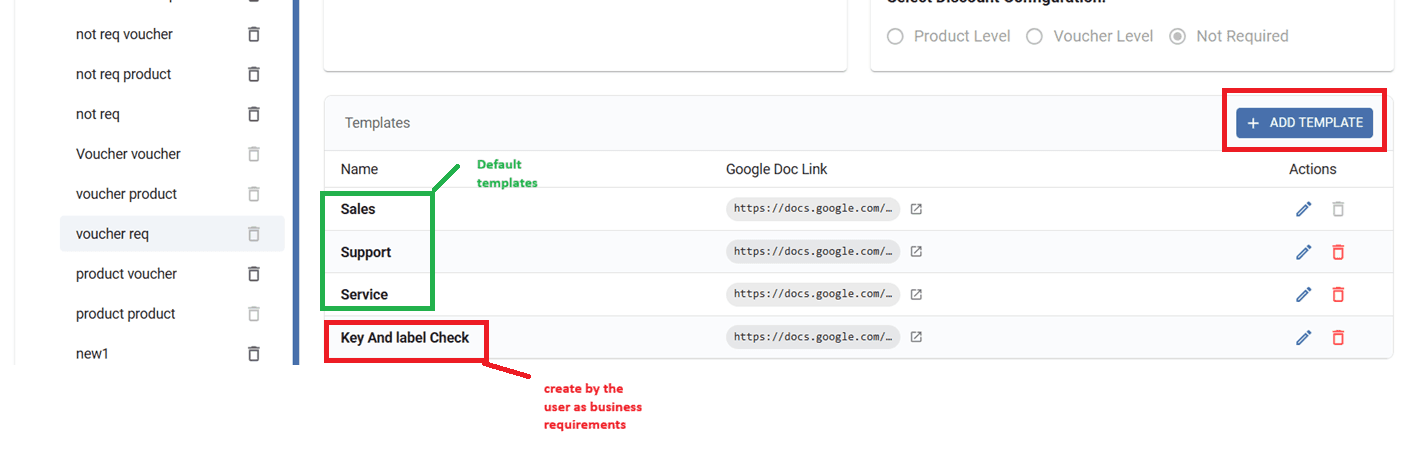
Although, three default templates are provided in the CRM and are available for users to use as required.
Functionality
1. Quotation Configuration
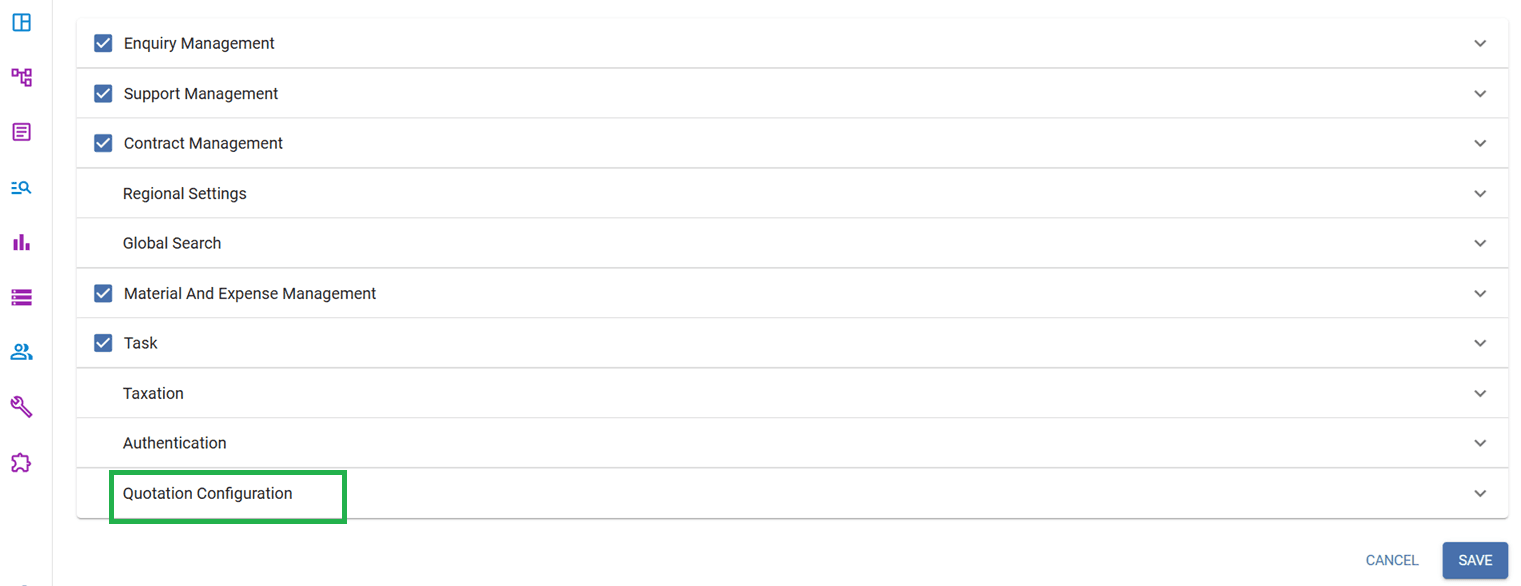
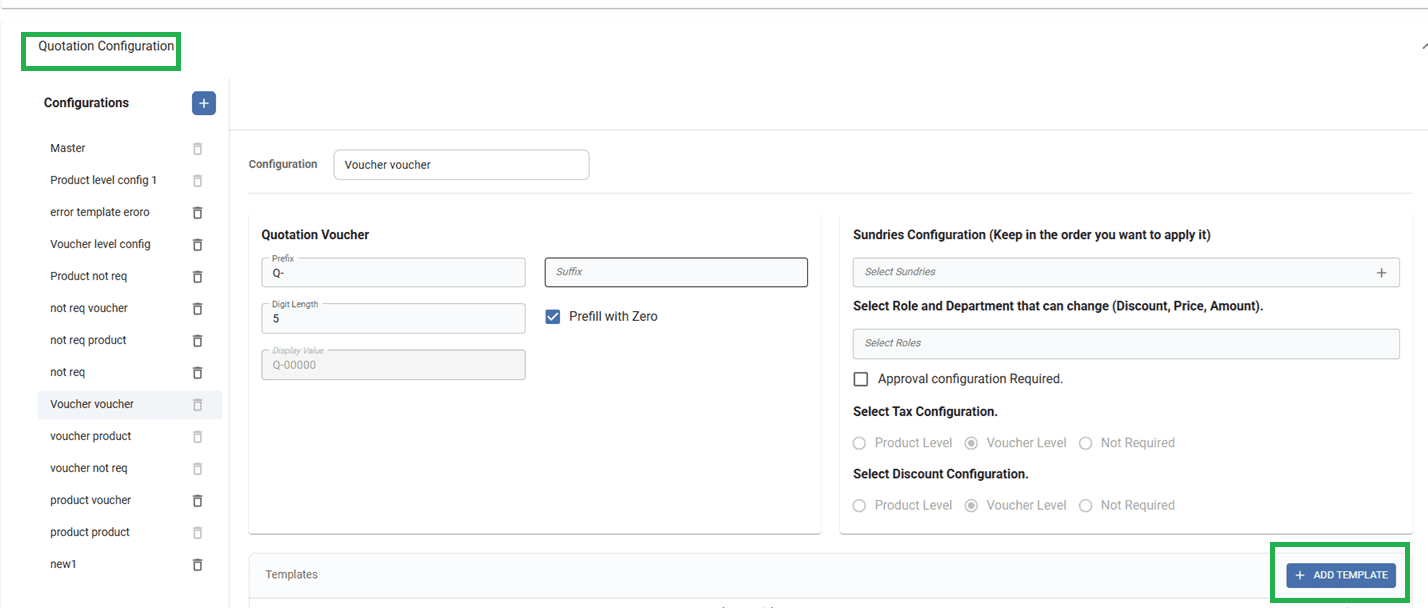
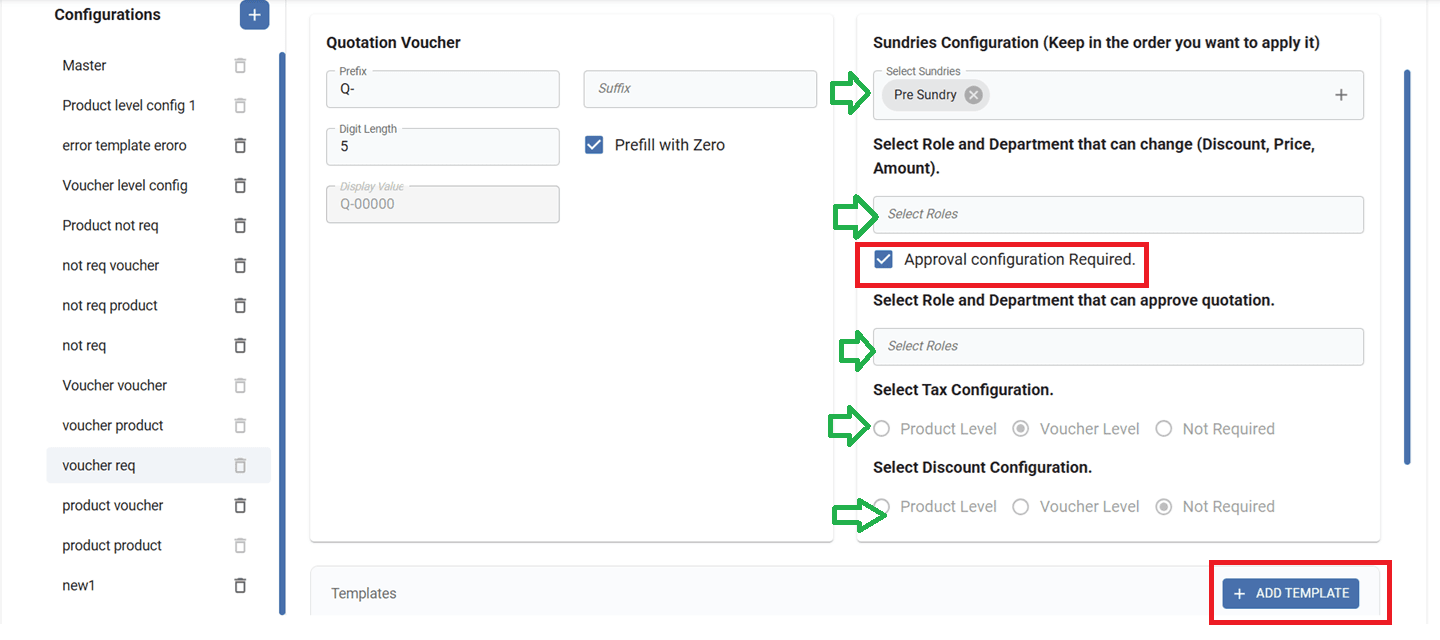
A new Quotation Configuration option is available in Application Configuration. Navigate via: Configuration → Application → Quotation Configuration. It allows administrators to configure various quotation-related settings, including:
- Configure the Sundries to be included in a quotation and define their order.
- Select the Role and Department users who are allowed to modify Discount, Price, and Amount.
- Enable or configure whether Quotation Approval is required.
- Select the Role and Department users who are authorized to approve quotations.
- Configure Tax and Discount settings.
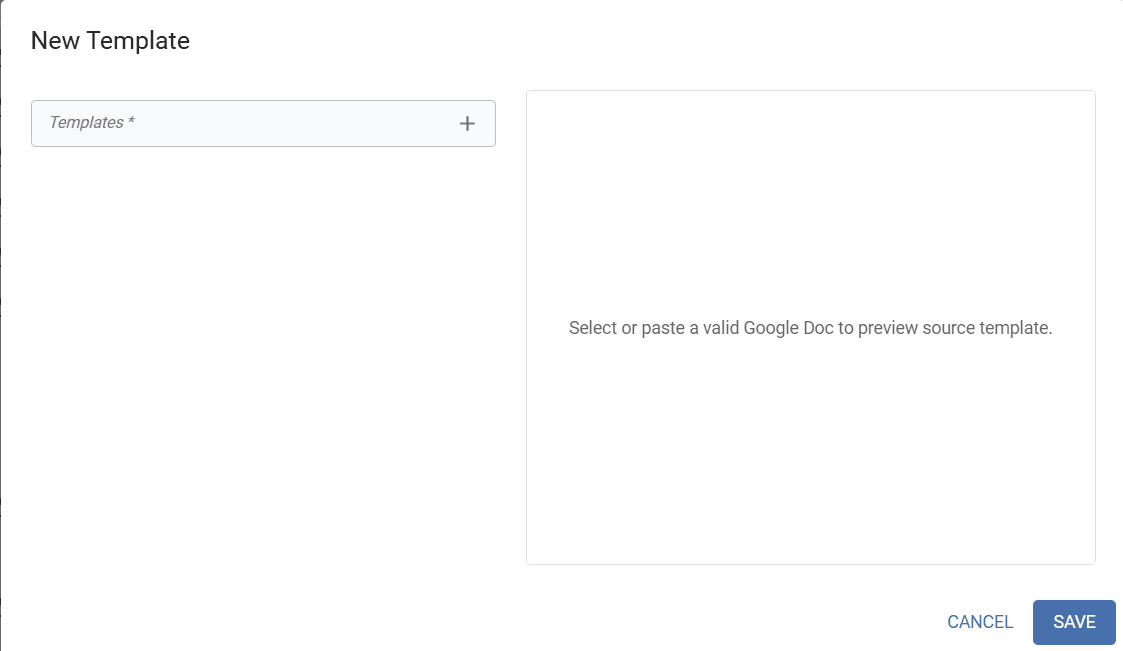
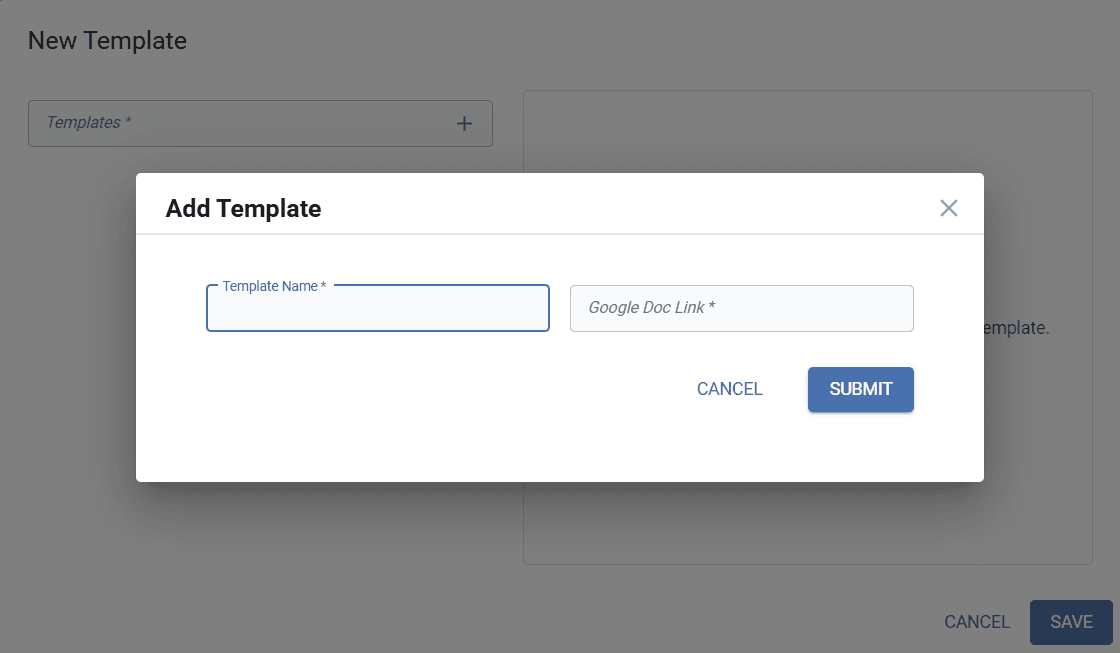
- Add new quotation templates by providing a Template Name and Google Docs Link.
Please follow the step-by- step instructions provided below along with the images:
Google Docs Template
Users can create quotation templates using Google Docs. The template follows a key-value pair structure, allowing users to use the keys configured in the Quotation Field Configuration to create and customize their quotation templates. This allows organizations to maintain multiple quotation templates based on different business requirements.
The variable keys are defined in Field Configuration section-wise:
a. In Header section:-
- contact
- company_name
- quotation_date
- company_address
- billing_address
- GSTIN
- shipping_address
- quotation_number
- valid_till_date
- place_of_supply
- received_by
- currency
- remarks
- bill_to_gstin
- Ship_to_gstin
b. In Product section:-
- s_no
- product
- description
- product_alias
- hsn_code
- quantity
- unit
- product_mrp
- list_price
- discount
- price
- tax
- amount
- tax_amount
- sub_total
- grand_total
- amount_in_words
- product info keys
c. In Footer section:-
- Terms_and_conditions
- bank_details
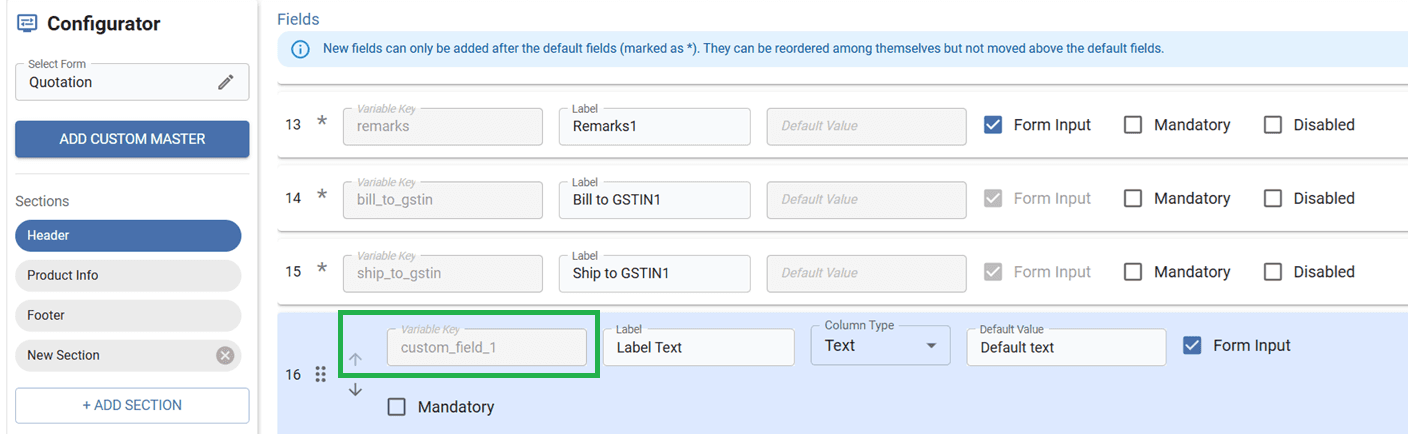
d. Custom fields can also be added, and their variable keys will be generated automatically, such as custom_field_1.
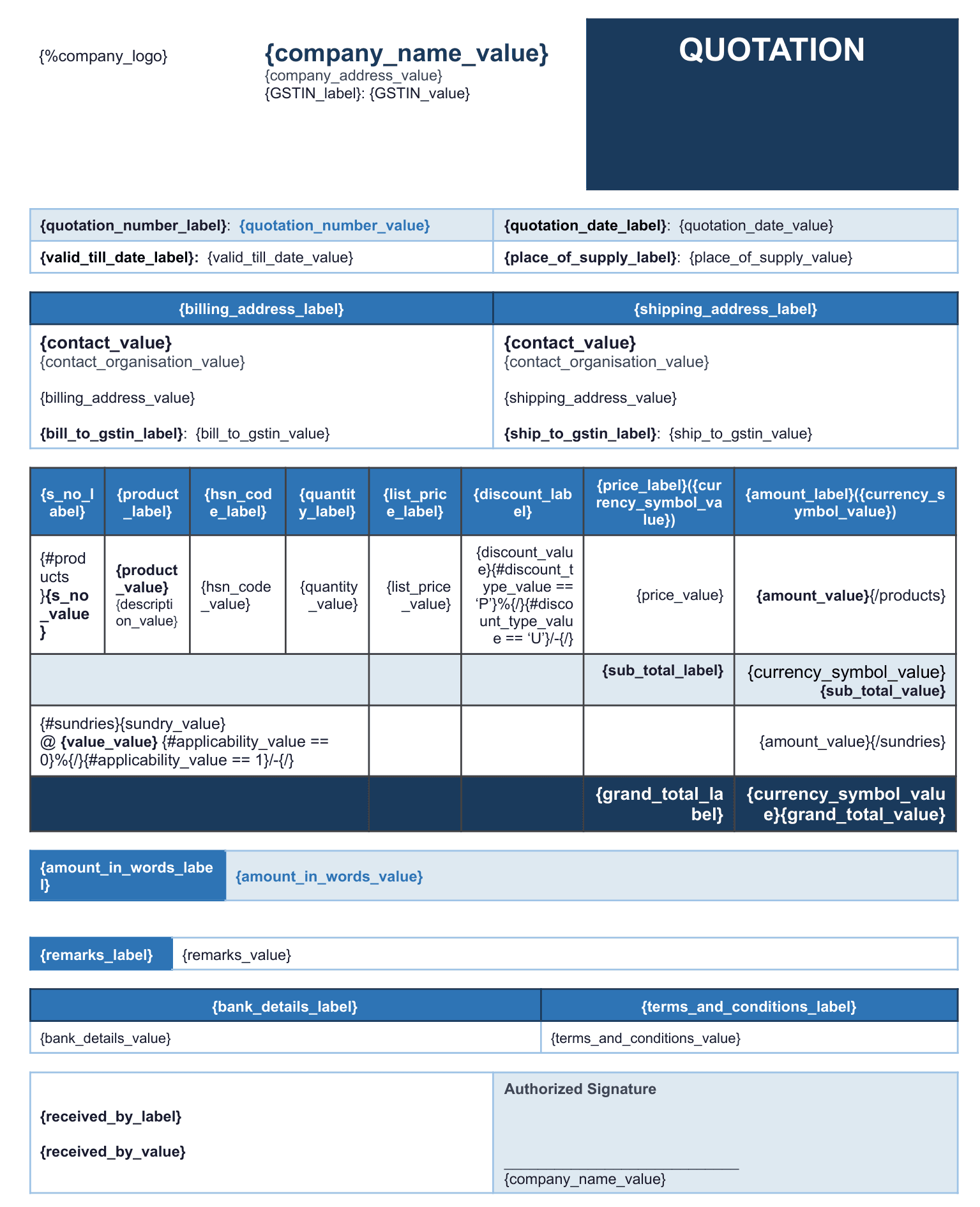
e. The sample template view is provided below for reference, illustrating how key-value pairs and key-labels can be used within the template to retrieve the corresponding values accordingly.
For example:
1. If the user wants to create a heading for the Contact section, they can use {contact_label}. Here, the variable key is displayed as Contact in Field Configuration, while the corresponding label represents the column name that will be displayed as the heading in the template.

2. If the user wants to display the Contact Person value, they can use {contact_value}. This variable will retrieve and display the value entered for the Contact Person in the respective quotation.
2. Field Configuration
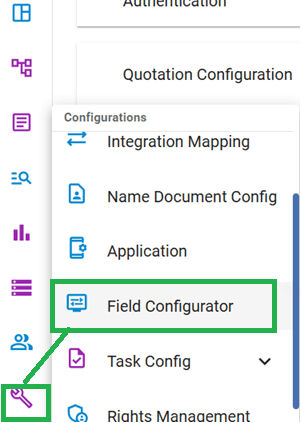
The Quotation module supports customized fields through Field Configuration. Navigate via: Menu Bar → Configurations → Field Configurator → Select Quotation in the 'Select Form' field.
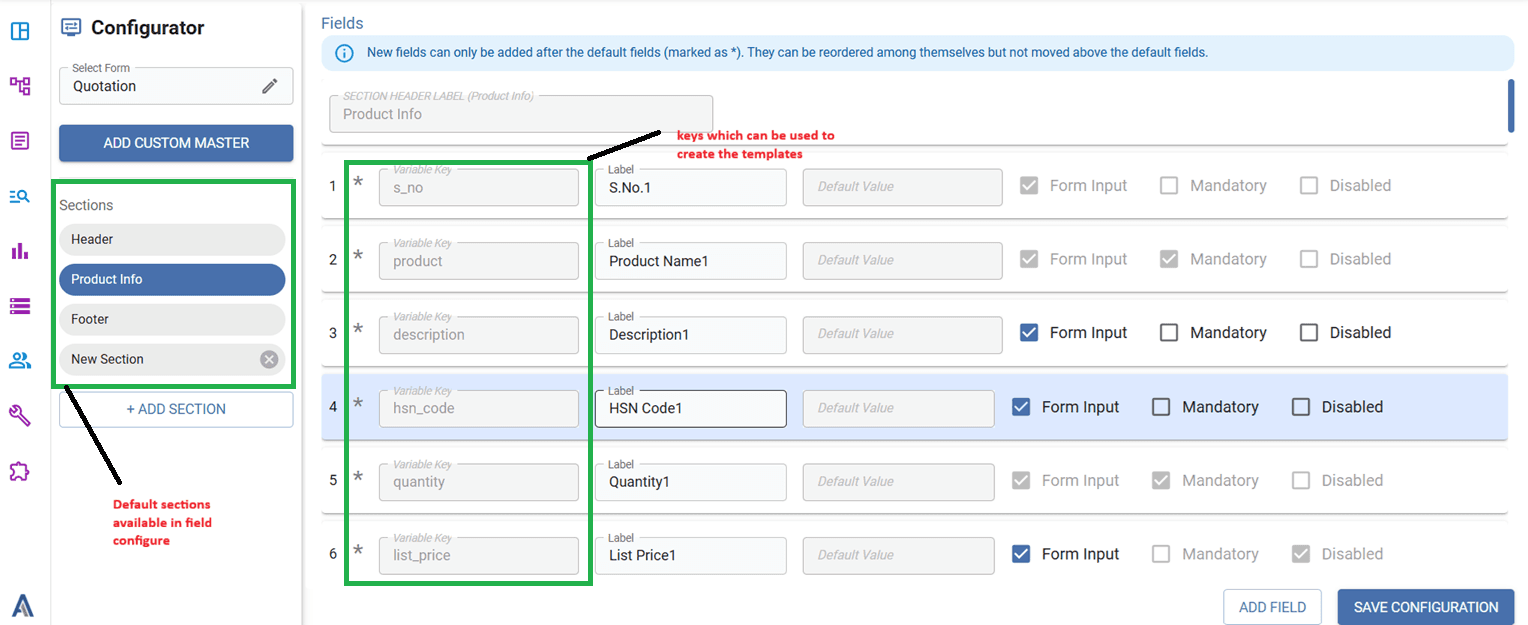
Three default sections are provided: Header, Product Info, and Footer.
The fields within these sections are mapped using the variable keys.
Form Input checkbox: When checked, the field will be available in the Quotation form for the user to enter or select a value.
Default Value field: If this field is enabled in Field Configuration, the user can specify a default value. This value will be automatically populated in the Quotation form when the user does not provide a value for that field.
Administrators can configure the required fields and customize the quotation form according to their requirements.
3. Quotation Template Selection
While creating a new Quotation, the system displays a Select Template window. The quotation templates added in Quotation Configuration are displayed in the template dropdown. Users can select the required template, and the quotation is generated using the selected Google Docs template along with the configured quotation information.
4. Role and Department-Based Control
The module provides role- and department-based control over important quotation actions.Administrators can define:
- Who can change Price
- Who can change Discount
- Who can change Amount
- Who can Approve Quotations
This provides better control over quotation modifications and approval processes.
5. Quotation Approval
If Approval Configuration Required is enabled, quotations must go through the configured approval process. Only users belonging to the configured Role and Department are authorized to approve the quotation.
Example
Consider an organization that wants to create quotations using different formats for different customers.
- The administrator opens Application Configuration → Quotation Configuration.
- The administrator configures the sundries and their required sequence.
- Specific roles and departments are selected for modifying Price, Discount, and Amount.
- Quotation Approval is enabled
- Authorized roles and departments are selected for approving quotations.
- A Google Docs quotation template is created using the required key-value pairs configured in field configured by the user.
- The template name and Google Docs link are added to the quotation Configuration.
- In Field Configuration, the administrator configures the required fields under Header, Product Info, and Footer which will be used by the user to create a new template.
- When a user creates a new quotation, the Select Template window displays the newly configured template.
- The user selects the required template and creates the quotation.
- If the quotation is not approved, the selected approval person with its role and department has the right to approve the Quotation by clicking on 3 dots [where edit and delete options are available] in quotation entity.
Product Grid in Enquiry, Support & Quotation
NewEnables users to add multiple products to an individual Enquiry, Support, or Quotation with configurable Product Info fields and Product Master field references based on business requirements.
Overview
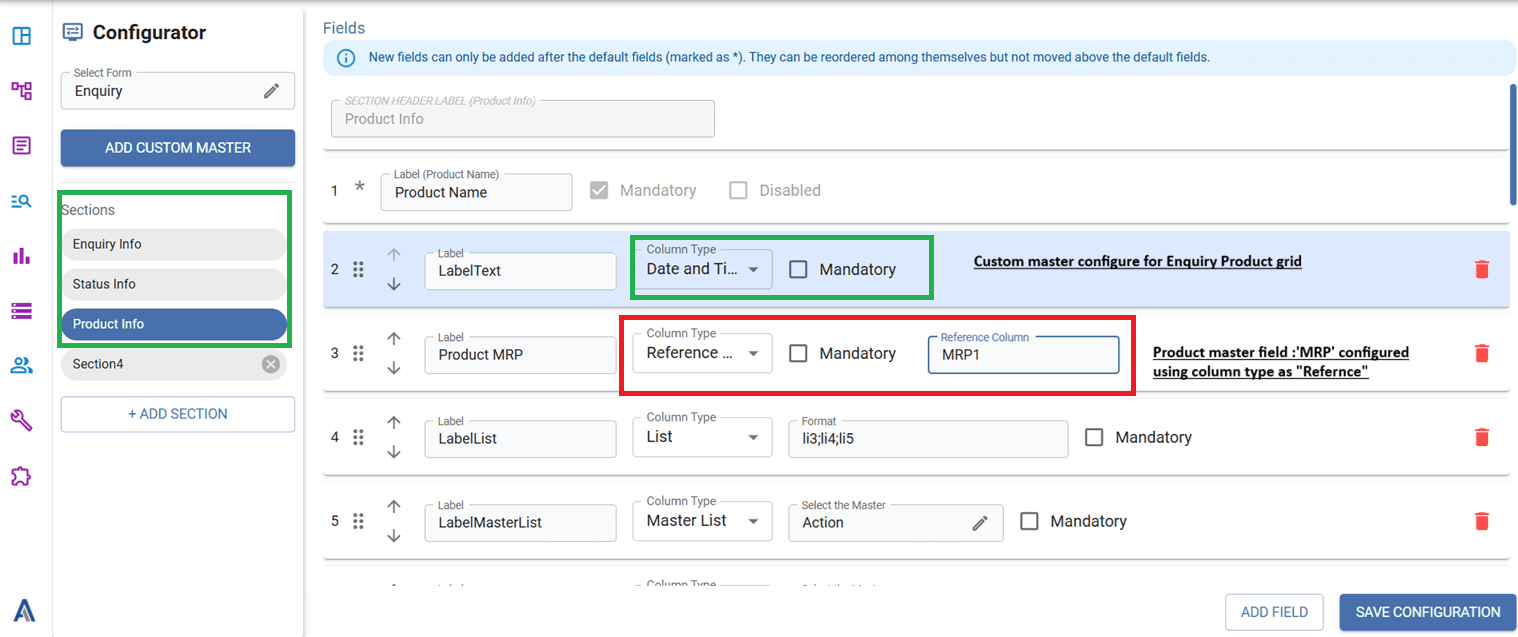
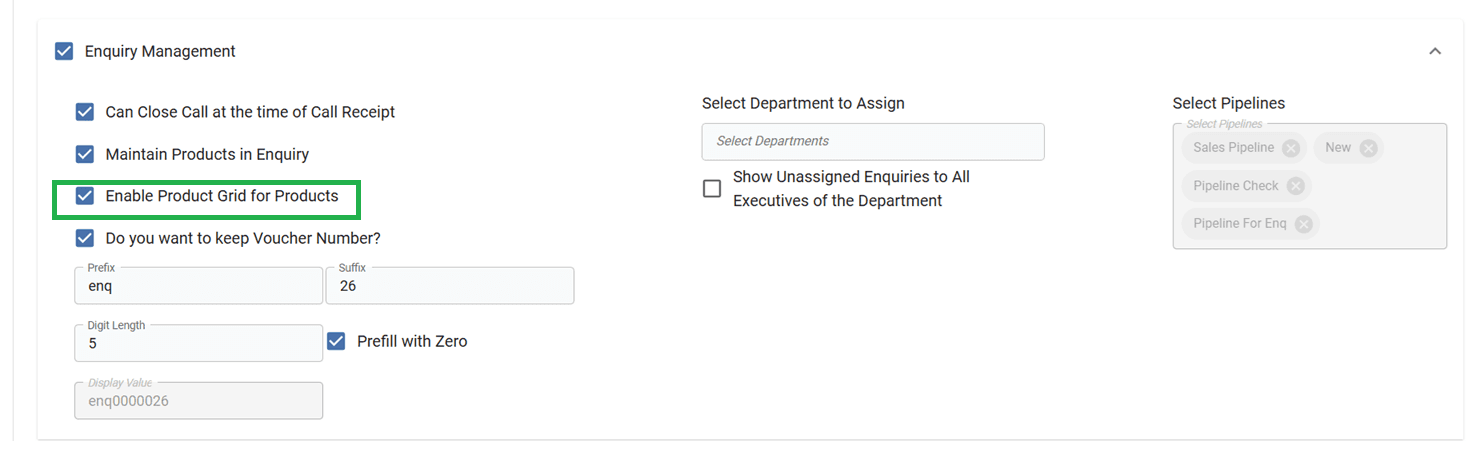
The Product Grid functionality allows users to add and manage multiple products within an individual Enquiry, Support, or Quotation. The fields displayed in the Product Grid can be customized according to business requirements through the respective Field Configuration. A default Product Info section is provided in the Field Configuration for Enquiry, Support, and Quotation, allowing administrators to define which product-related fields should be displayed in the Product Grid.
Functionality
- Multiple Products: Users can add multiple products to a single Enquiry, Support, or Quotation through the Product Grid.
- Product Info Configuration: A default Product Info section is available in Field Configuration for Enquiry, Support, and Quotation.
- Custom Fields: Users can add required product-related fields to the Product Info section according to business requirements.
- Product Master Reference: Product Master fields can be added by selecting Column Type = Reference, allowing Product Master data to be used in the Product Grid.
- Existing Configuration Flow: Other Field Configuration options work the same way as in existing forms.
Example
An administrator configures Product remarks, Product code in the Product Info section as custom fields by selecting Product remarks by selecting column type= text, Product code by selecting column type= numeric . They can also add Product Master fields such as Quantity, Price, Warranty by selecting Column Type = Reference.
When creating an Enquiry, Support, or Quotation, the user can then add multiple products with all the configured fields available for each product.
Support and Contract Template Enhancement
Users can create customized Support and Contract templates using key-value pairs, configure their fields through Field Configuration, and add the templates to the respective Application Configuration using a template name and document link.
Overview
The Support and Contract Template Enhancement allows users to create and manage customized document templates according to their business requirements.
Users can create a new template using key- value pairs, configure the required fields through the respective Support or Contract Field Configuration, and add the template to Application Configuration using the Add Template option.
Functionality
Users can create a new Support or Contract template using key-value pairs. The configured key-value fields can be made available through the respective Support or Contract Field Configuration.
In Application Configuration, users can click Add Template to add a new template.A form will open where the user can enter:
- Template Name
- Document Link
The configured template will then be available for use in the respective Support or Contract module.
Example
For example, an administrator creates a Support Template using the required key-value pairs and configures those fields in Support Field Configuration.
The administrator then navigates to Application Configuration → Support → Add Template, enters the template name and document link, and saves it.
The newly added template can then be used for generating Support documents. The same process can be followed for Contract templates.
Currency Master
NewIntroduces a dedicated Currency Master for managing currency details and enables currency selection in Regional Settings and the Quotation form, with currency-related information automatically populated from the master.
Overview
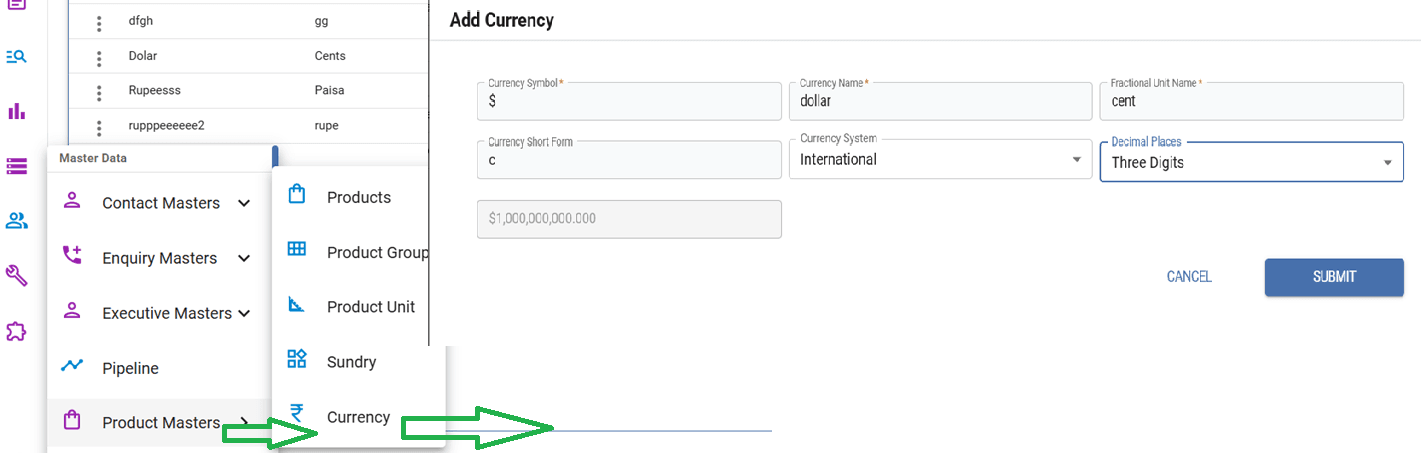
A new Currency Master has been added under Master → Product → Currency to centrally manage currency-related information.
The Currency Master allows administrators to define details such as the currency name, symbol, fractional unit, short form, currency system, and decimal places.
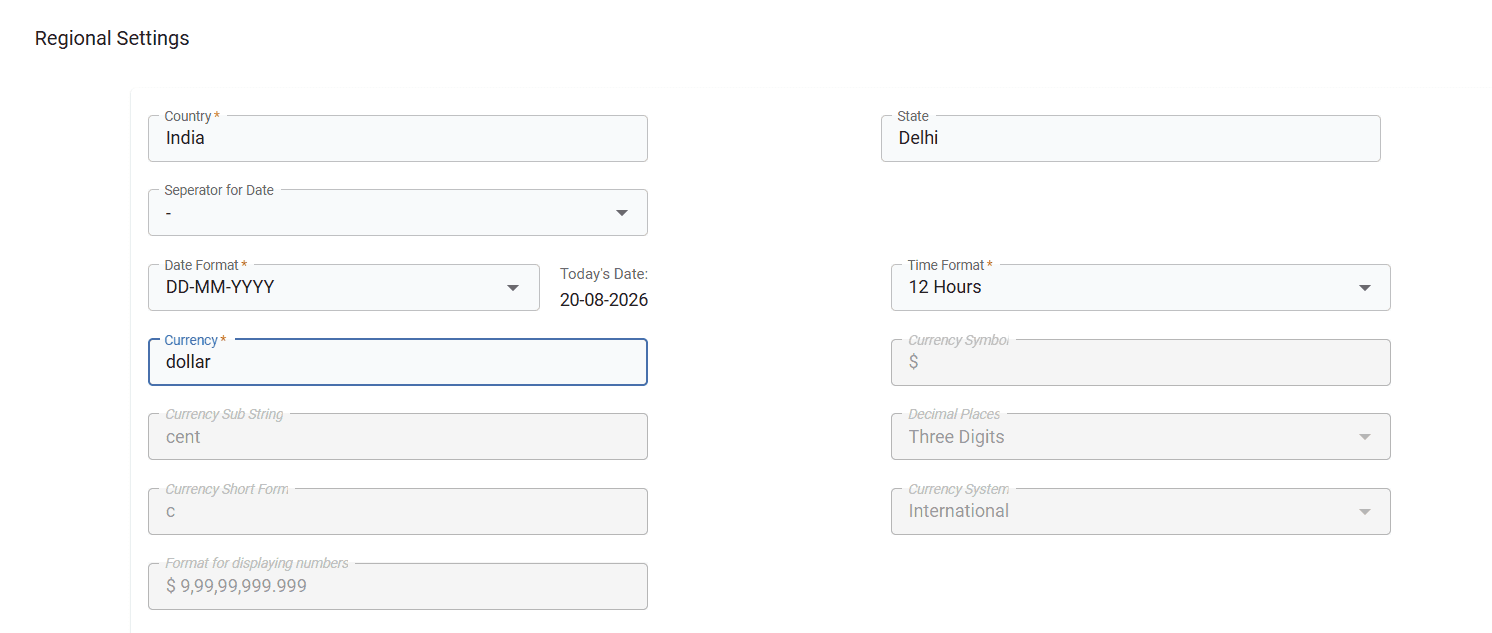
The selected currency can be configured in Regional Settings under Application Configuration, while the remaining currency details are automatically populated from the Currency Master and displayed in disabled mode.
Currency selection is also available in the Quotation form, allowing users to select the required currency while creating a quotation.
Functionality
Currency Master: Added under Master → Product → Currency.
Currency Details: Users can configure:
- Currency Symbol
- Currency Name
- Fractional Unit Name
- Currency Short Form
- Currency System
- Decimal Places
Regional Settings: Users can select only the Currency Name from the Currency Master.
Auto-Population: Other currency details are automatically populated in Regional Settings and remain disabled, ensuring they can only be modified from Currency Master.
Quotation Currency: A Currency dropdown is available in the Quotation form.
Currency-Based Data: Once a currency is selected, the relevant quotation data is displayed according to the selected currency configuration.
Example
An administrator creates Indian Rupee (INR) in Currency Master with its symbol, fractional unit, short form, currency system, and decimal places.
In Application Configuration → Regional Settings, the administrator selects Indian Rupee. The remaining details are automatically populated and remain disabled.
While creating a Quotation, the user selects the required currency from the Currency dropdown, and the quotation values are displayed according to the selected currency.